


In this article
How to Clean your List
List cleaning is the process of scanning your email list to identify risky or inactive addresses such as spam traps, disposable emails, and deactivated accounts. Removing these helps protect your sender reputation, improves deliverability, and ensures your campaigns reach people who are actually interested. It also reduces unnecessary sending costs and gives you more accurate data to base your email strategy on. List cleaning requires ongoing data sourcing and maintenance across millions of records, which is why there is an additional fee to run it. When you upload your list, the platform performs a Health Check to show your list status and whether cleaning is recommended.
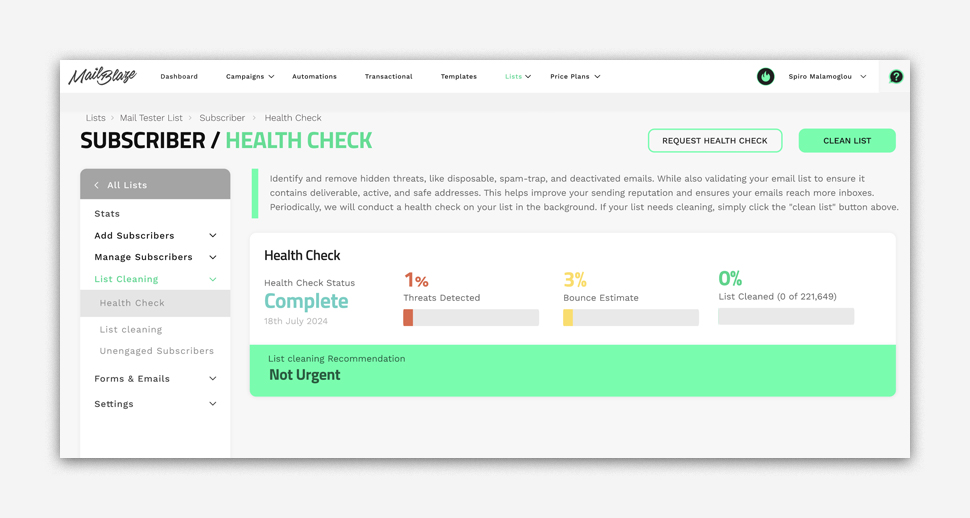
PLEASE NOTE: Health Checks are completely free and run automatically when you upload a list. They can take a few hours to complete (depending on the size of the data)
Free Health Check
You can run a HEALTH CHECK on any list at any time. Go to LIST > LIST, then open the list you want to check, select LIST CLEANING, then choose HEALTH CHECK and click REQUEST HEALTH CHECK.
If the HEALTH CHECK recommends list cleaning, it means your list contains addresses that could affect your deliverability. From there, you can proceed with the list cleaning process directly in the platform to remove risky or inactive contacts.
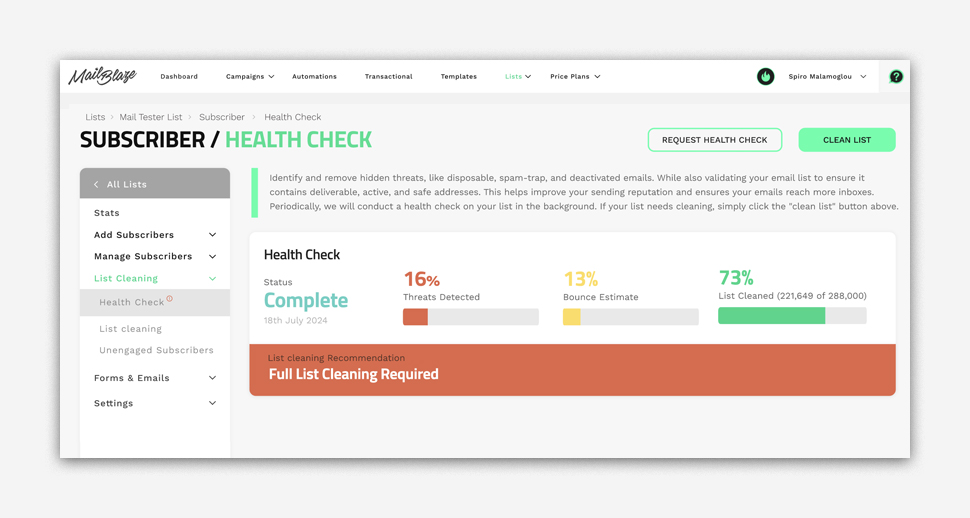
Click on the CLEAN LIST button on the right hand side of the List Health Check Menu. The platform will automatically calculate the cost to clean your list for you.
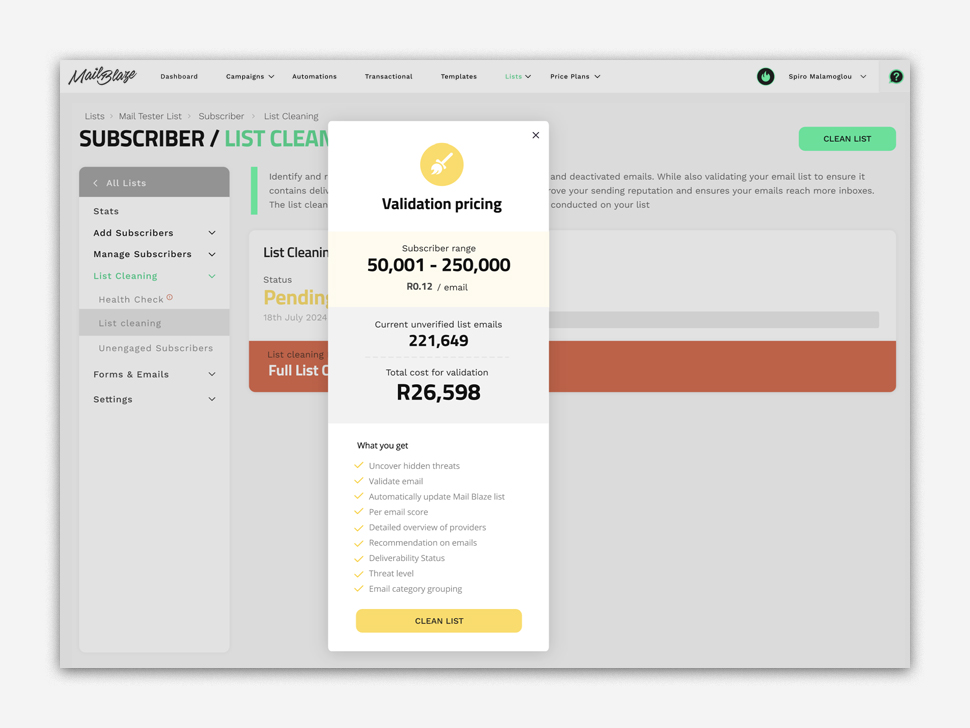
Click on CLEAN LIST and the list cleaning process will start.
PLEASE NOTE: the platform will bill you immediately for the list cleaning and no refunds will be processed.
Please allow the platform to complete the list cleaning process, this may take a few minutes or hours depending on the size of your list. The List Cleaning status will go from Processing to Processed when it’s done.
You’ll now see your list cleaning report menu which consists of the following tabs: Overview, Score, Providers, Deliverability, Threat Level and Reason.
LIST CLEANING REPORT
| TAB | WHAT IT SHOWS | DESCRIPTION |
|---|---|---|
| Overview | Subscribers Processed, Cleared, Ignored Addresses, Quarantined | Provides a high-level summary of how many subscribers were evaluated and what actions were taken. Ignored addresses are usually the customer’s own domain or account email, so they are excluded from cleaning. |
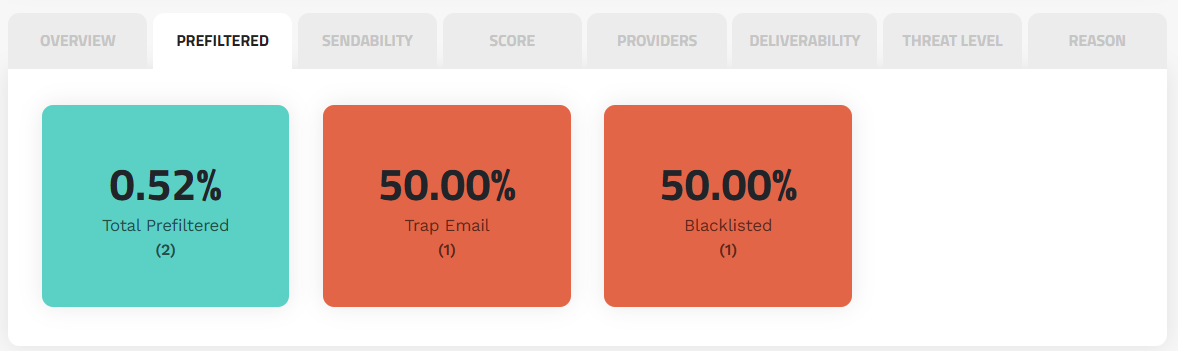
| Prefiltered | Total Prefiltered, Trap Email, Blacklisted | Shows subscribers filtered out before full validation, including known spam traps and blacklisted records. This view can be searched and sorted for easier review. |
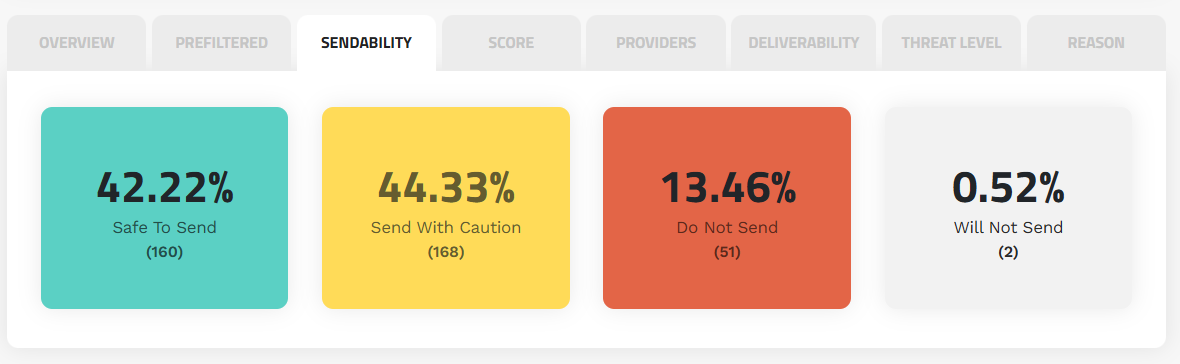
| Sendability | Safe to Send, Send with Caution, Do Not Send | Indicates the sending reliability for each subscriber. Helps you decide whether to include or exclude them in your campaigns. |
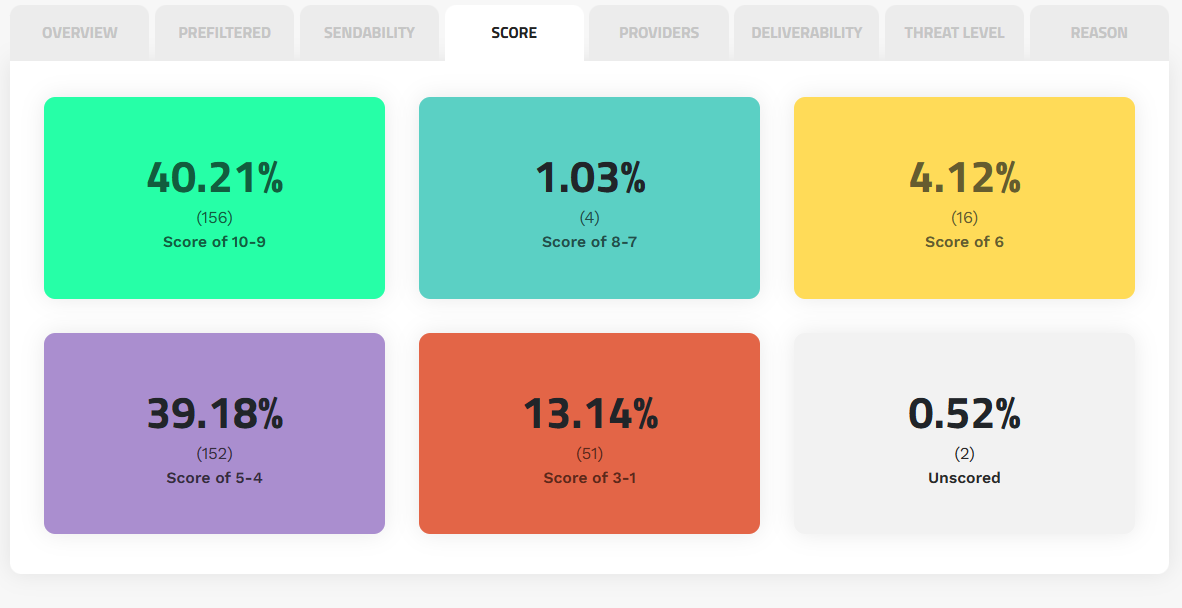
| Score | Groups subscribers by assigned score (10–9, 8–7, 6, 5–4, 3–1, Unscored) | Shows the email quality score based on the subscriber’s past activity and deliverability, using the Mail Blaze Score history. Higher scores indicate better engagement and lower sending risk. |
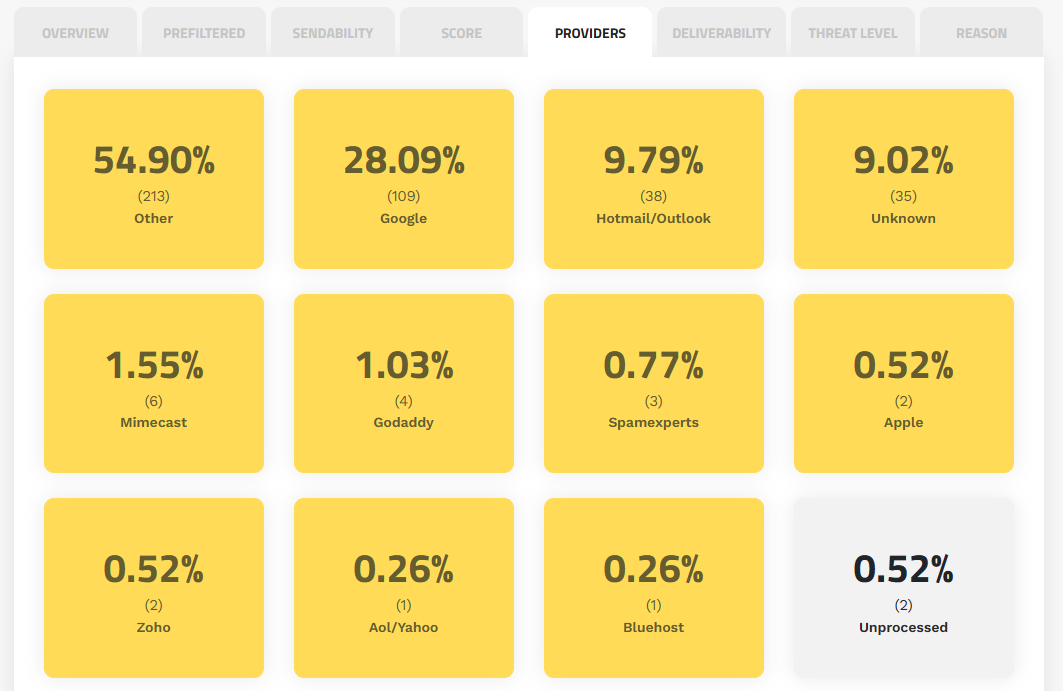
| Providers | Shows subscriber counts grouped by email provider | Helps identify trends based on the domain used (e.g., Gmail, Outlook, Zoho). Useful for spotting provider-specific deliverability issues. |
| Deliverability | Deliverable, Possibly Deliverable, Undeliverable, Unknown | Shows how likely an email is to be successfully delivered. Helps you clean your list and reduce bounce rates. |
| Threat Level | Low, Moderate, High, Undetermined | Highlights the potential risk of sending to an address (e.g., possible spam trap, fake address, or unsafe domain). |
| Reason | Accepted, Suspicious, Role Based, Catch-all, Unknown, DNS Error, Mailbox Full, Malicious, Rejected, Unprocessed | Shows the classification reason or detection outcome for the subscriber, helping you understand why it was assigned its status. |
Overview Tab
The Overview tab focuses on helping you quickly understand which addresses were excluded or filtered during the cleaning process.
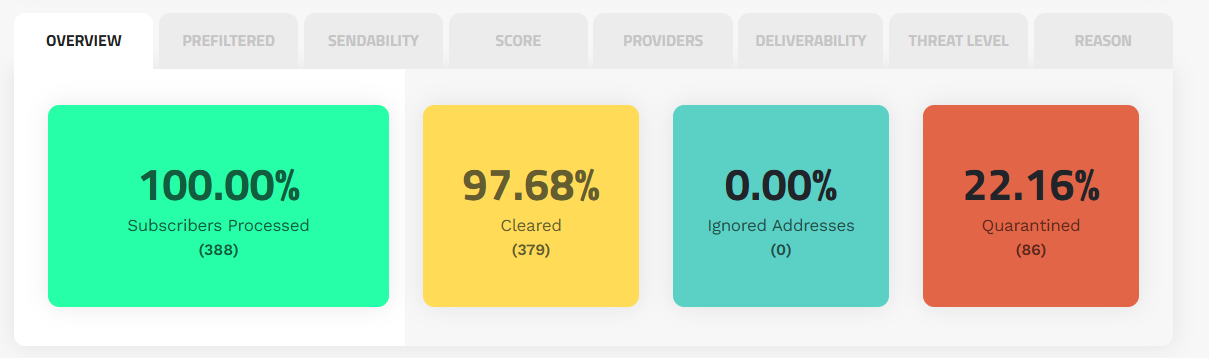
This tab gives you a high-level summary of what happened during cleaning:
- Subscribers Processed – Total number of subscribers evaluated.
- Cleared – Subscribers confirmed as safe to keep.
- Ignored Addresses – Email addresses matching the customer’s own domain or the customer’s main account email. These are excluded from cleaning to prevent accidental removal.
- Quarantined – Subscribers that will no longer receive campaigns from this list due to being identified as risky or undeliverable.
Prefiltered tab
This tab shows all addresses that were filtered out before the main cleaning process. It includes the total number of prefiltered emails, as well as any addresses identified as trap emails or blacklisted. When you open this tab, the table below automatically updates to show only these matching records, and you can search, filter, and sort the list as needed.
Sendability tab
This tab indicates how safe it is to send to each address. It shows whether an address is safe to send to, should be sent to with caution, or should not be sent to based on the risk and deliverability analysis.
Score Tab
The score tab allows you to review the scores assigned to each individual subscriber on the list that has been cleaned. Below you will find a matrix of what each score means. The score gives you an indication of the level of threat a subscriber record holds. 10 represents a record that is deliverable and has no known threats, whereas 1 represents a record with the highest threat level that is malicious.
PLEASE NOTE:
- Any record scoring lower than 6 will be quarantined.
- You can dispute the scores with our team where you believe the system has made an error.
Providers Tab:
The provider tab allows you to review the providers assigned to each individual subscriber on the list that has been cleaned. Essentially showing you the inbox service provider an individual subscriber uses.
Deliverability Tab:
The deliverability tab shows you whether your email records are deliverable or undeliverable. Any records with a score lower than 6 will not be delivered.
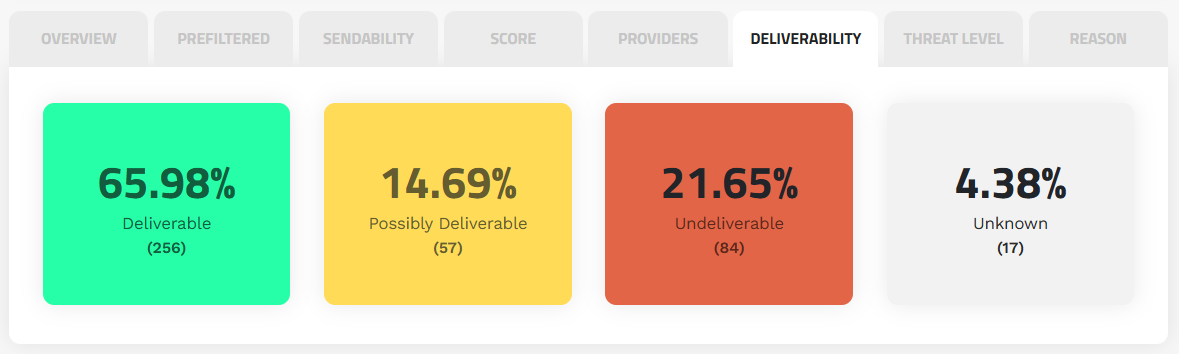
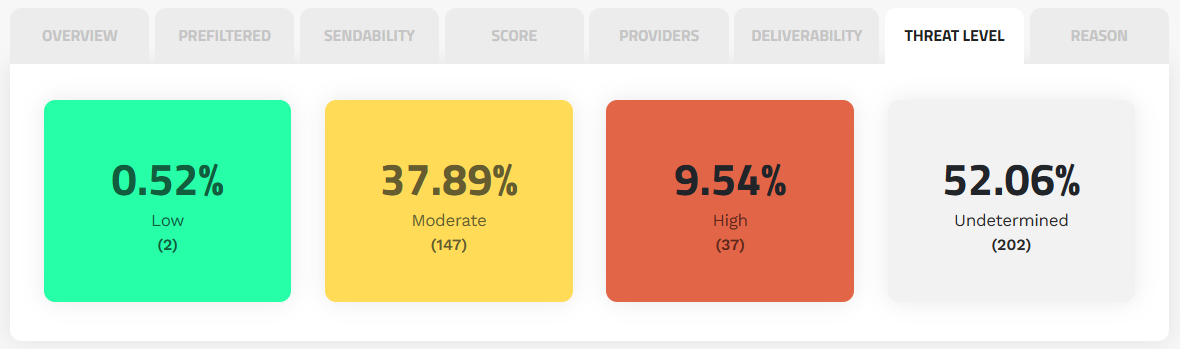
Threat Level Tab:
The threat level indicates the level of risk a record poses.
Reason Tab:
The Reason tab offers you more insight into why a record has been scored the way it has.
Here is an example of the screen:

| REASON | DESCRIPTION |
|---|---|
| ACCEPTED EMAIL | Email address was accepted by the SMTP server. |
| CATCH ALL | Some domains accept all emails you send to them, even if the email address is not valid. We classify these addresses as "catch_all". After an email is sent, the recipient mail server may silently discard the message or send a bounce message after the fact. In these cases, we cannot guarantee an email will be delivered to a user's inbox. Sending to an Accept All domain may increase your bounce rates and lower your open rates. Therefore, use a degree of caution when sending to catch-alls. |
| DISPOSABLE | Email addresses that point to domains like spamgourmet.com and mailinator.com are disposable email services. These services enable users to create one-time email addresses to receive initial communications from a service (such as an activation email or coupon) which are then discarded. It is highly recommended you do not mail to disposable email addresses. |
| INVALID EMAIL | Specified email is not a valid email address syntax. |
| INVALID DOMAIN | Domain name does not exist or is not configured to receive email. |
| REJECTED EMAIL | The email address was rejected by the SMTP server; the email address does not exist. |
| DNS ERROR | We could not resolve the DNS records, or the domain is misconfigured. |
| UNAVAILABLE SMTP | unavailable_smtp: The SMTP server was unavailable to process our request. |
| UNKNOWN | An unexpected error has occurred. |
| ROLE-BASED | role_based: A role email is an address that's typically associated with a function (postmaster, support, sales, etc.) instead of a person. In some instances, mailing to a role address can lead to a decreased open rate and is generally advised against while sending marketing emails. |
| MAILBOX DISABLED | Email address exists but is disabled and won't be able to receive email. |
| MAILBOX FULL | The inbox of this recipient is full, it might generate a soft bounce. |
| SUSPICIOUS | Email address appears to be system or non-human-generated bots. |
| DANGEROUS | Domain and address associated with consistent negative engagement. |
| MALICIOUS | Domain and address associated with elevated negative engagement. |
Export Stats Button
You’ll see an EXPORT STATS button next to Clean List.
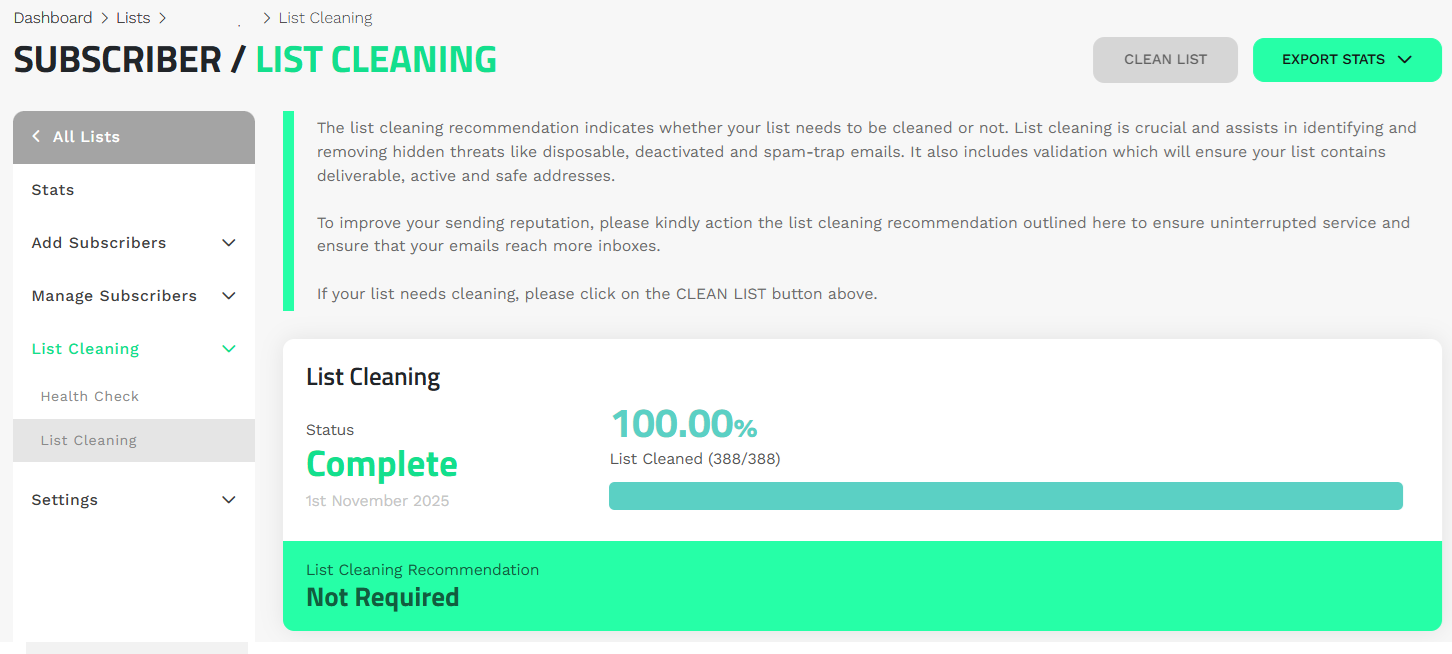
This works the same way as the export button in the Campaign Report. You can download results in CSV or PDF format for internal use, analysis, or sharing across your team.
These give clearer visibility into how addresses are handled during cleaning, prevent accidental removal of internal emails, and improve reporting with easy export options.
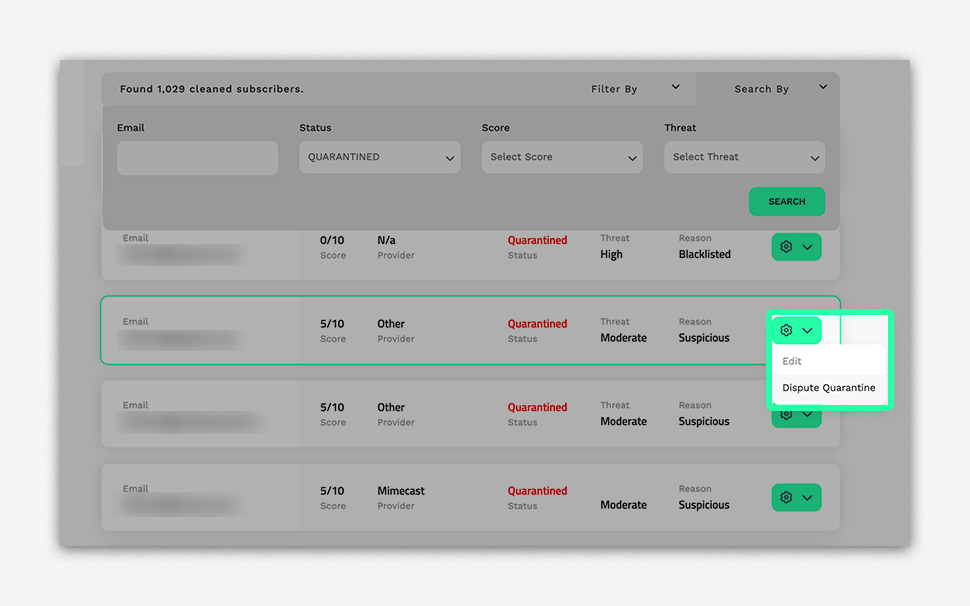
How to dispute QUARANTINED Email Address
In the List Cleaning Report, use the SEARCH BY field to enter the email address, then select the STATUS, SCORE, and THREAT filters as needed, and click SEARCH. From the results, click the GEAR ICON next to the email and select DISPUTE QUARANTINE. Our team will review and investigate the request before approving it.
Still haven't found what you are looking for?
Book a demo with us and see Mail Blaze in action, or reach out to our support team for expert assistance. We're here to help you every step of the way!
Still haven't found what you are looking for?
Still haven't found what you are looking for?
Book a demo with us and see Mail Blaze in action, or reach out to our support team for expert assistance. We're here to help you every step of the way!
Book a demo with us and see Mail Blaze in action, or reach out to our support team for expert assistance. We're here to help you every step of the way!