


In this article
How to Segment Your Email List
Email list segmentation is a technique used by marketers to group subscribers based on shared characteristics such as location, industry, behavior, or custom field data. Segmentation helps improve engagement by ensuring subscribers receive content that is relevant to them.
Steps to create Segments:
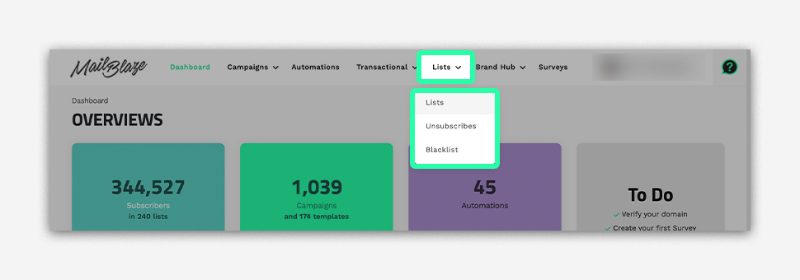
- Login to your Mail Blaze account. From the top navigation menu, click LISTS, then select LISTS again from the dropdown.
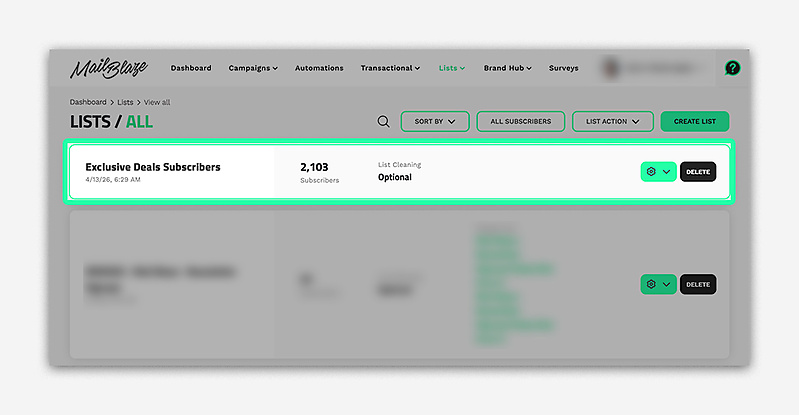
- Open the List you want to Segment
- Click on MANAGE SUBSCRIBERS.
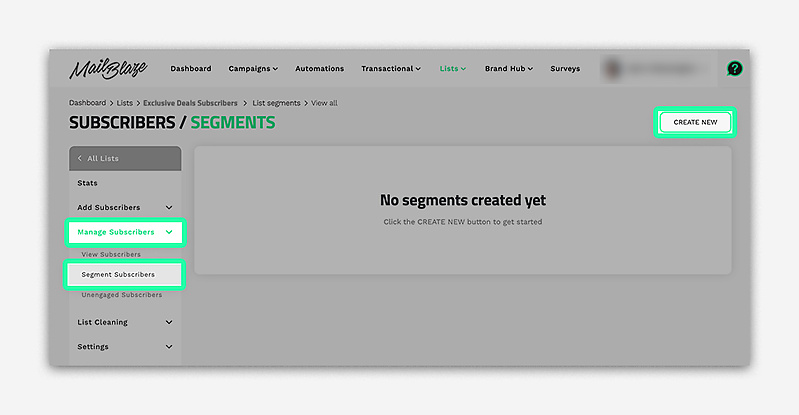
- Click on SEGMENT SUBCSRIBERS and click on CREATE NEW
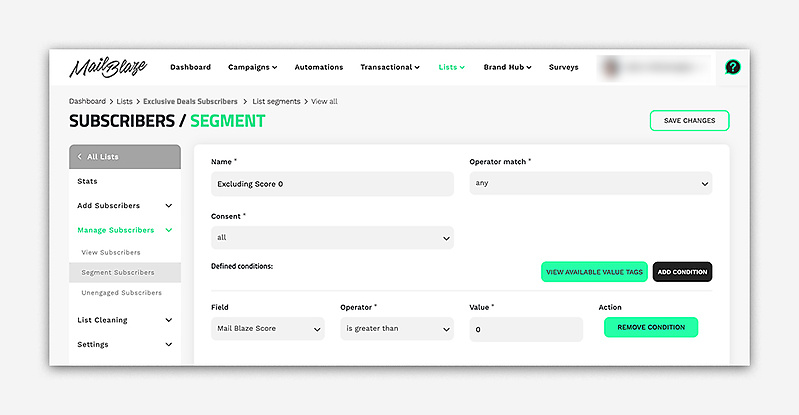
NAME FIELD
Now enter the name of the segment into the Name field. In our example, it would be the name of a city.
OPERATOR MATCH
The Operator match setting specifies whether the segment should contain subscribers that match any of the conditions (it includes all subscribers that match 1 or more conditions) or all conditions, meaning that subscribers are only included in the segment if all of their conditions are matched.
| Operator | Meaning | Example | Result |
|---|---|---|---|
| Is | Matches an exact value. | Country is South Africa | Only subscribers from the Philippines will be included. |
| Is Not | Excludes an exact value. | Status is not Active | Everyone except Active subscribers will be included. |
| Contains | Value appears anywhere in the field. | Email contains “gmail” | Matches any email that has “gmail” in it. |
| Not Contains | Excludes any value that appears anywhere. | Job Title not contains “Manager” | Everyone except those with “Manager” in their title will match. |
| Starts With | The value begins with the stated characters. | First Name starts with “Ma” | Includes names like Maria, Mark, Mae. |
| Ends With | The value ends with the stated characters. | Email ends with “.edu” | Targets emails from educational institutions. |
| Is Greater Than | For numbers, selects values above a point. | Score is greater than 50 | Includes subscribers with scores higher than 50. |
| Is Less Than | For numbers, selects values below a point. | Score is less than 100 | Includes subscribers added before that date. |
| Not Starts With | Excludes values that begin with the stated characters. | First Name not starts with “A” | Removes anyone whose name starts with A. |
| Not Ends With | Excludes values that end with the stated characters. | Email not ends with “.com” | Includes everyone except those using .com addresses. |
Any: subscribers that match 1 or more conditions All: only subscribers that have data that match all specified conditions
Choose ADD CONDITION when you have set your preferences. Then select the field that you want to use to group subscribers that match the condition in the current segment and SAVE CHANGES.
- Click on SAVE CHANGES.
Still haven't found what you are looking for?
Book a demo with us and see Mail Blaze in action, or reach out to our support team for expert assistance. We're here to help you every step of the way!
Still haven't found what you are looking for?
Still haven't found what you are looking for?
Book a demo with us and see Mail Blaze in action, or reach out to our support team for expert assistance. We're here to help you every step of the way!
Book a demo with us and see Mail Blaze in action, or reach out to our support team for expert assistance. We're here to help you every step of the way!