


In this article
How to Add a Mailto Link to Your Campaign
Adding a mailto link in your campaign makes it easy for your subscribers to reply directly to you. This can help boost engagement and keep communication open. There are two options to add a mailto link: as a BUTTON link or as a HYPERLINK in your content. Both options will automatically open the subscriber’s default email app so they can send you a reply easily.
Here’s how you can add them to your design:
Option 1: Add a Mailto Link Using a Button
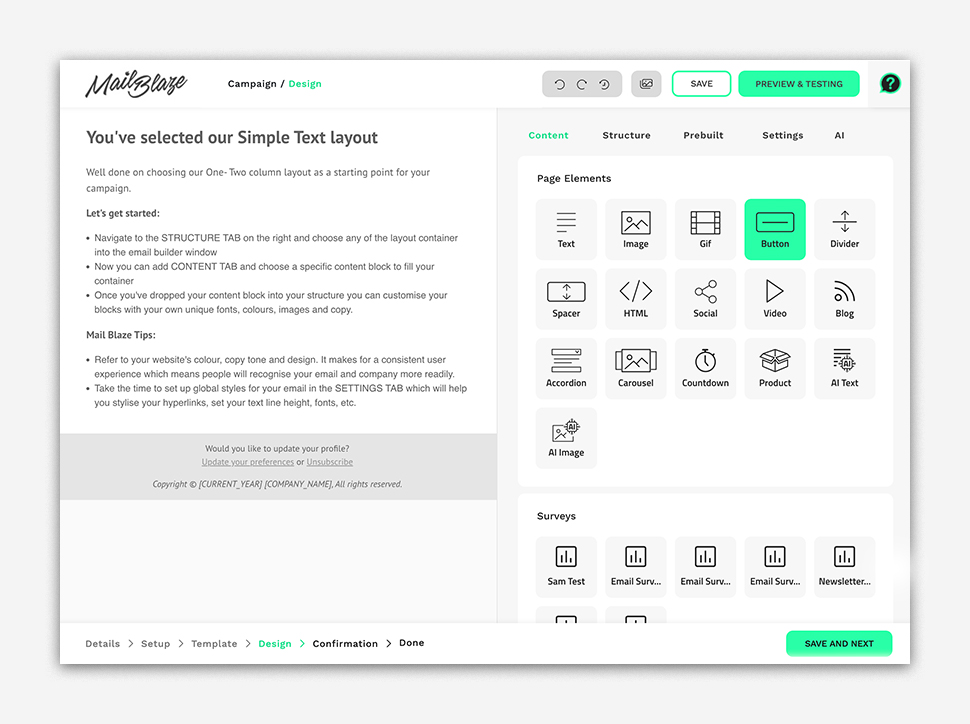
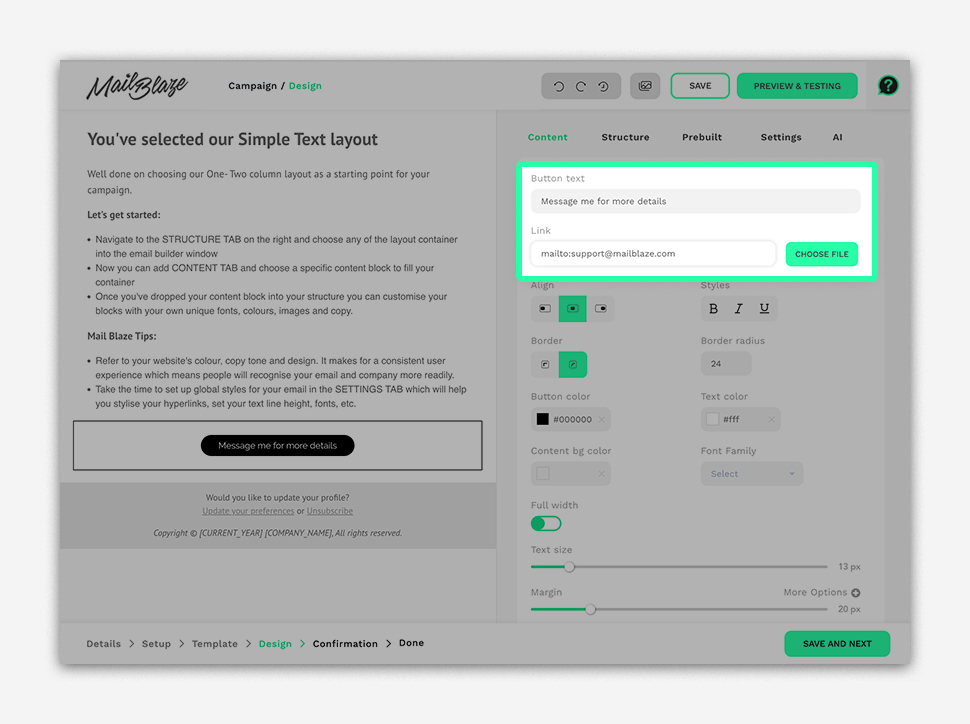
In your design, drag-and-drop the button content block, type the button text and in the Link, type mailto:[your email address], see sample below: mailto:[email protected]
You can also create a mailto hyperlink by utilising a text content block and then typing or pasting the text you need (in this case an email address) and then click on the LINK option and add in mailto:emailaddress.com.
Option 2: Add a Mailto Link as a Hyperlink
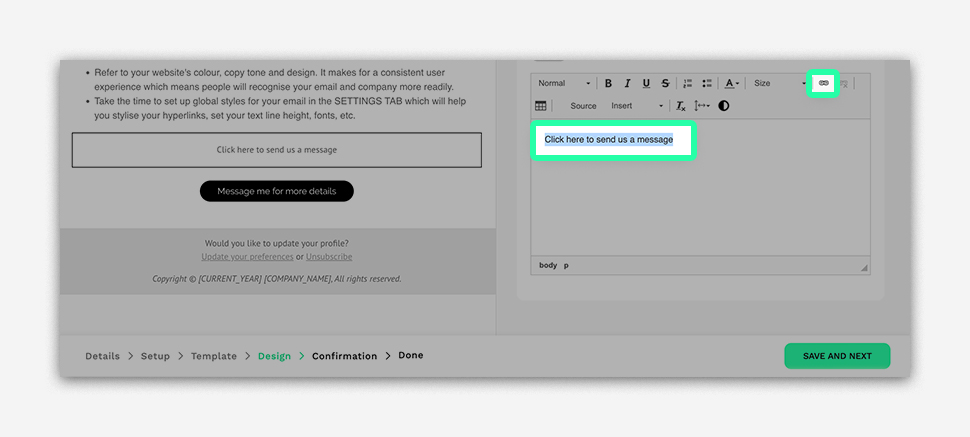
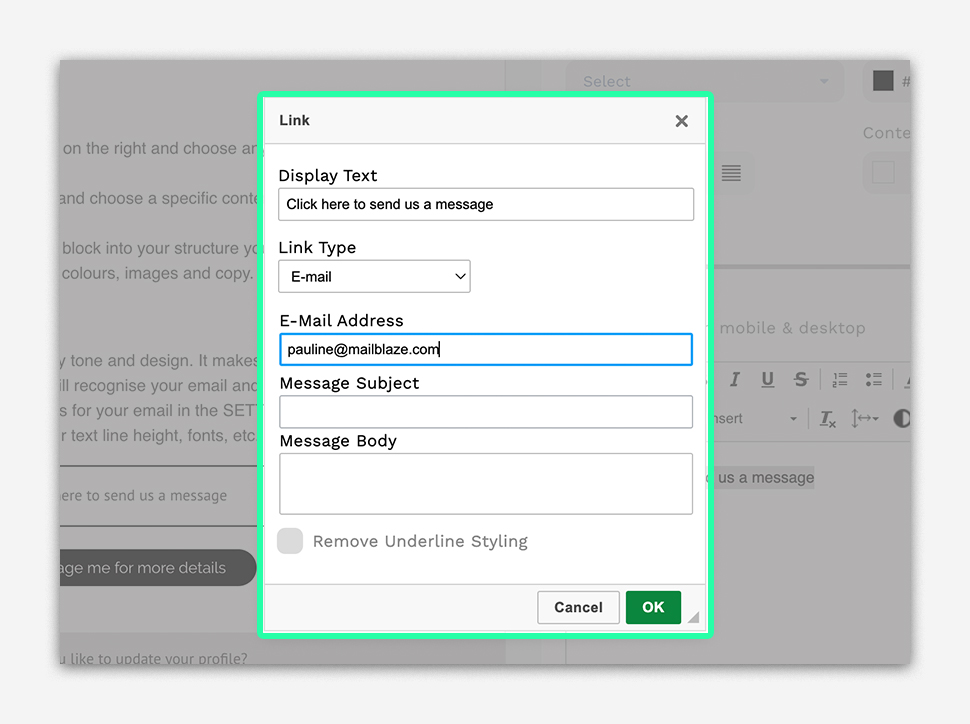
If you want to use the hyperlink, drag and drop a text content block, type or paste the text you need and then highlight the word that you want to be clickable. Now you can click on the LINK option:
Once clicked, a pop up window will appear, select EMAIL from the Link Type option
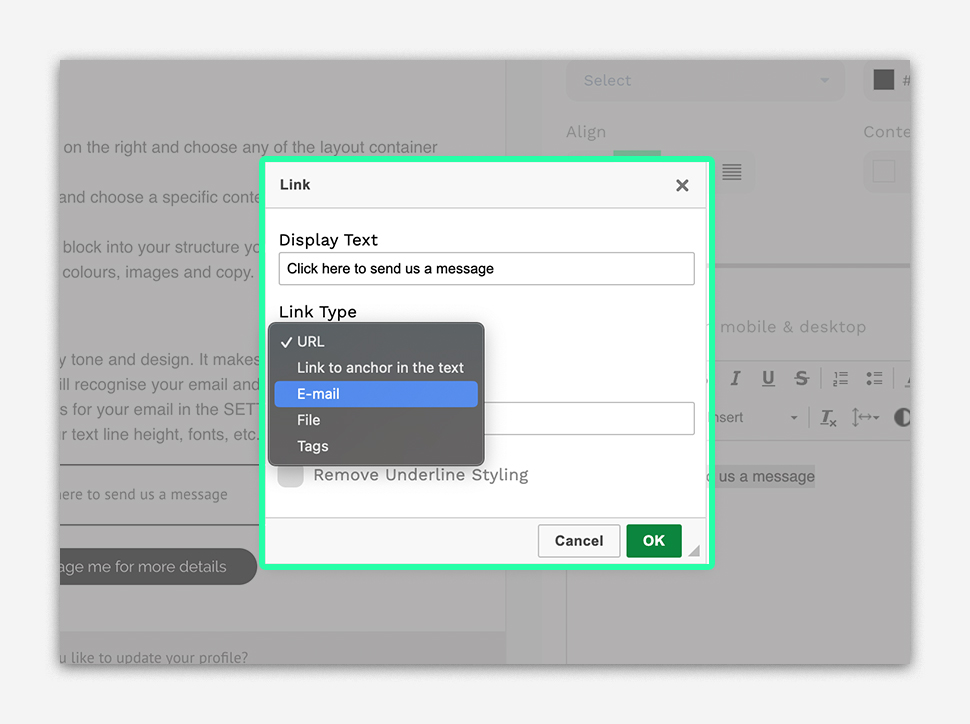
Once clicked, you need to fill out the following and click on OK.
How Subscribers See and Use the Mailto Link
From your subscribers’ perspective, the mailto link is very simple and intuitive:
In the email: The link appears as a clickable button or highlighted text (depending on how you added it) for example: CONTACT US.
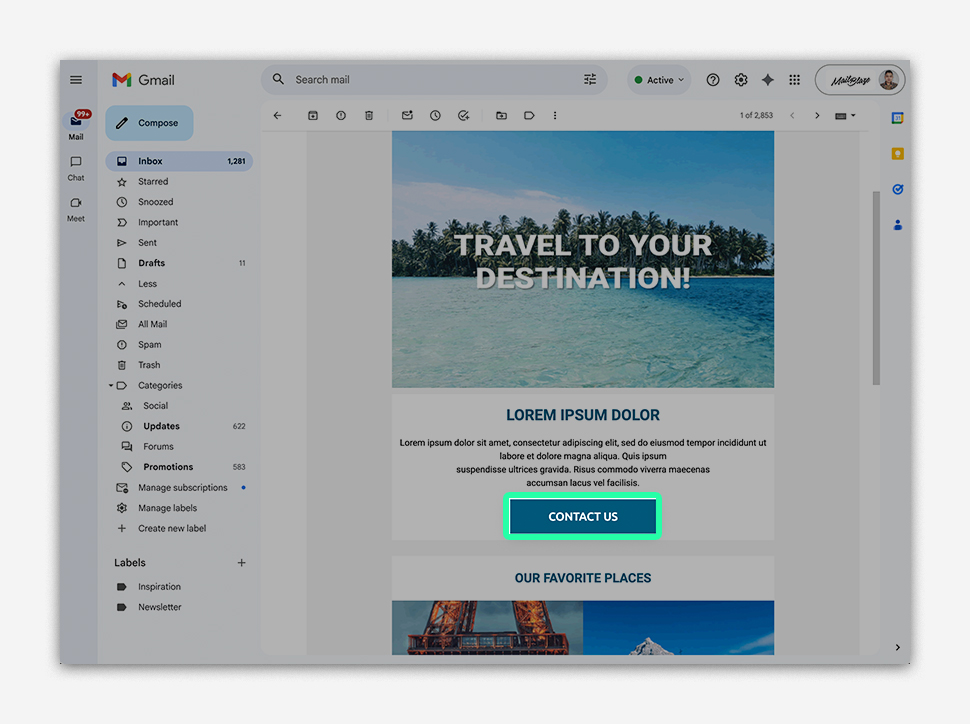
When clicked, the default email application opens automatically (for example, Gmail, Outlook, Apple Mail, or a mobile mail app).
The “To” field is already filled in with your email address.
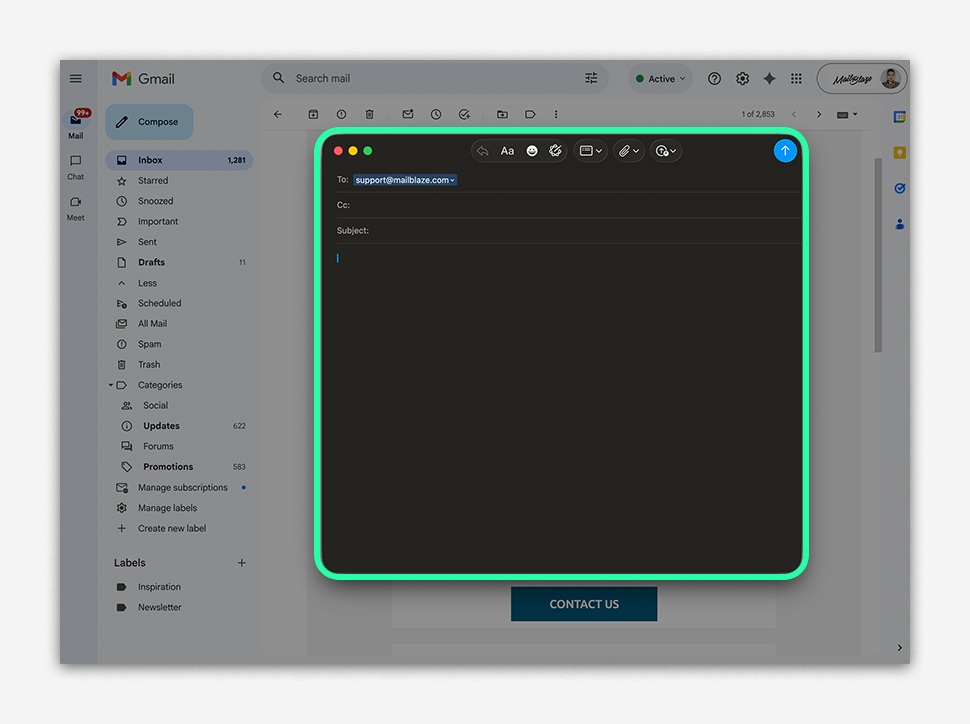
Receivers can immediately type their message and send it—no copying or pasting required.
What This Looks Like on Different Devices
Desktop: Clicking the link opens the default mail program or webmail associated with their browser.
Mobile: Tapping the link opens the phone’s mail app with a new message ready to send.
Still haven't found what you are looking for?
Book a demo with us and see Mail Blaze in action, or reach out to our support team for expert assistance. We're here to help you every step of the way!
Still haven't found what you are looking for?
Still haven't found what you are looking for?
Book a demo with us and see Mail Blaze in action, or reach out to our support team for expert assistance. We're here to help you every step of the way!
Book a demo with us and see Mail Blaze in action, or reach out to our support team for expert assistance. We're here to help you every step of the way!