


In this article
How to Reuse Your Previous Design to a New Campaign
Reusing a previous campaign design can save time and ensure consistency across your email campaigns. Mail Blaze allows you to copy a prior campaign’s layout, save it as a template, and then use it in a new campaign. Follow the steps below to streamline your email creation process.
Follow the steps below to copy and save a previous campaign design:
- Go to the TEMPLATE Design section and click on PREBUILT.
- Under IMPORT STRUCTURES, click on the dropdown menu.
- Select the title of the previous campaign whose design you want to reuse.
- Click GO to apply the selected design to your template.
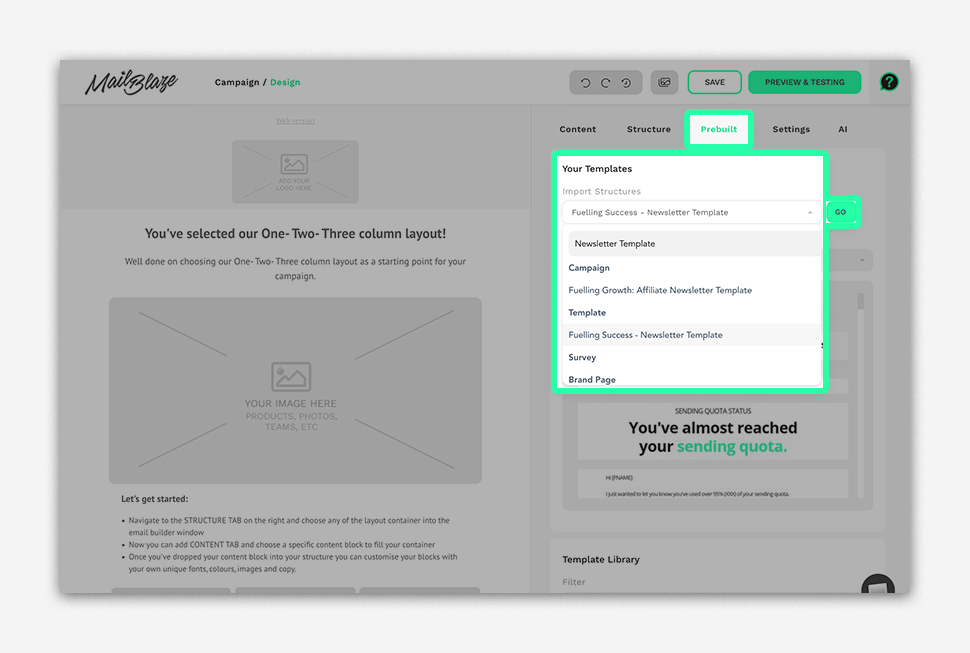
Pro Tip: Once applied, you can further customize the design, including text, images, colors, and layout, before saving it as a reusable template.
You will see a pop-up message. Simply click "I UNDERSTAND" to proceed.
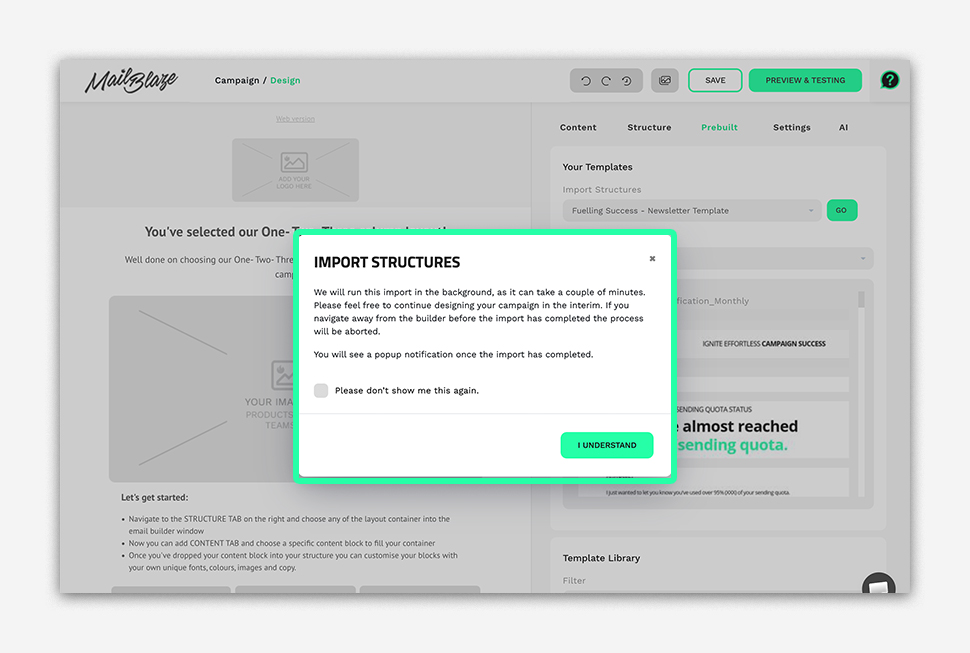
Once the design has been generated in the TEMPLATE BLOCK, you can drag and drop it into your campaign design. Feel free to drag and drop the blocks you need and save it as a Template.
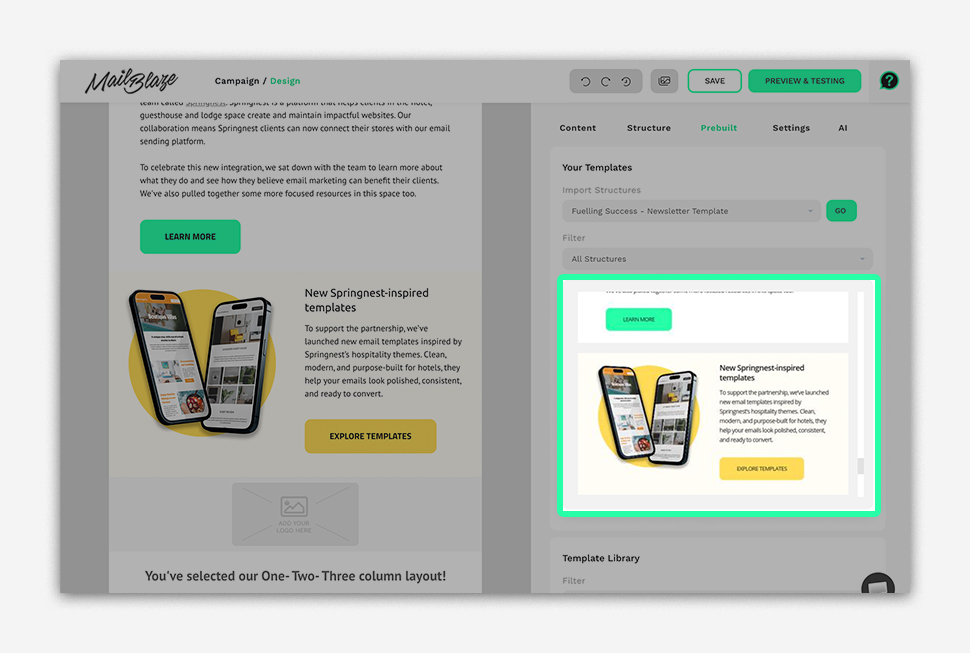
Pro Tip: Once applied, you can further customise the design, including text, images, colors, and layout, before saving it as a reusable template.
How to Use a Saved Template in Your Campaign
Using a saved template in Mail Blaze allows you to quickly create new campaigns while maintaining consistent design and branding. Once you have a template saved, you can easily apply it to any campaign.
In the campaign wizard, navigate to the Template Section, click on YOUR TEMPLATES, select the template you saved, and then click SAVE AND NEXT.
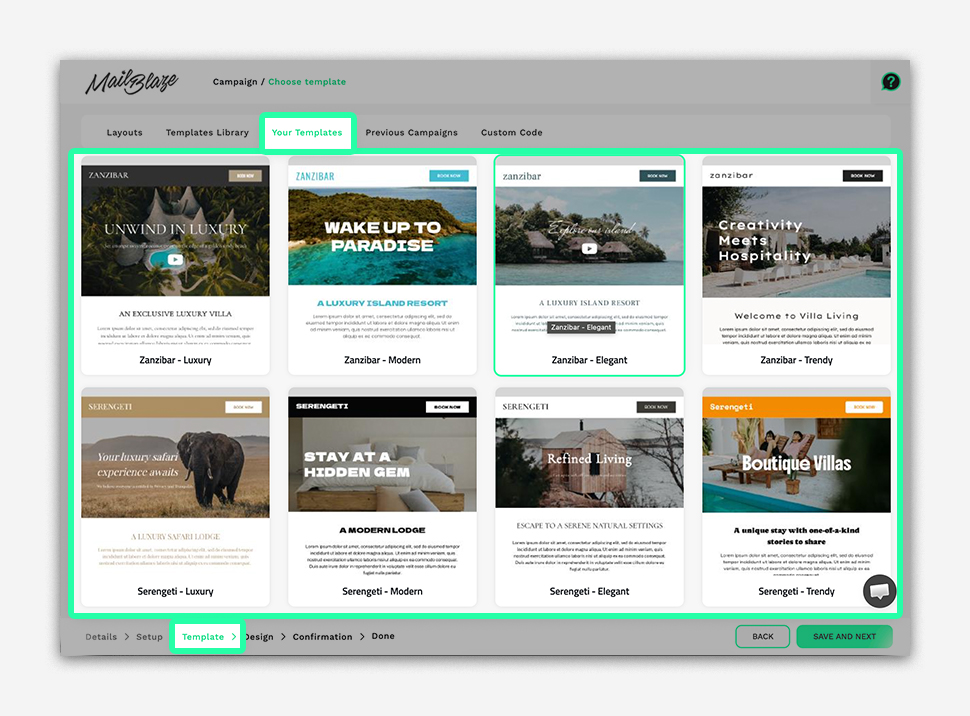
By reusing and saving campaign designs, you can reduce setup time, maintain a consistent brand look, and focus more on your message instead of rebuilding layouts from scratch. Make the most of your templates to create professional emails quickly and efficiently with Mail Blaze.
Still haven't found what you are looking for?
Book a demo with us and see Mail Blaze in action, or reach out to our support team for expert assistance. We're here to help you every step of the way!
Still haven't found what you are looking for?
Still haven't found what you are looking for?
Book a demo with us and see Mail Blaze in action, or reach out to our support team for expert assistance. We're here to help you every step of the way!
Book a demo with us and see Mail Blaze in action, or reach out to our support team for expert assistance. We're here to help you every step of the way!