


In this article
How to set up your ecommerce automations for Shopify
E-commerce automations allow you to send the right message to your customers at the right time without needing to send campaigns manually. By connecting your Shopify store to Mail Blaze, you can trigger emails automatically based on customer actions such as placing an order, registering an account, or abandoning a cart.
These automations help you improve customer experience, increase conversions, and keep your audience engaged throughout the entire shopping journey.
To get started, log in to your Mail Blaze account and then click on the AUTOMATIONS tab in the main navigation, then click on CREATE NEW.

Give your automation a name and select the appropriate E-commerce trigger and conditions.
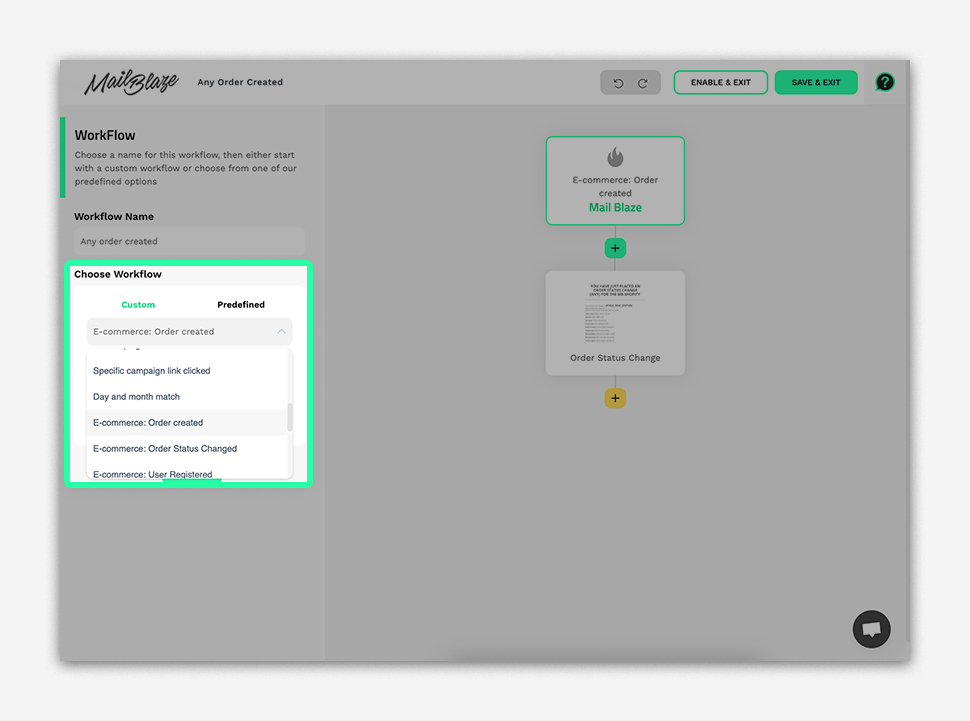
The specific E-commerce triggers and conditions available for Shopify are as follows:
| Category | Trigger | Available conditions | Primary purpose |
|---|---|---|---|
| Order Management | Order Created | Any order created, Total amount, Currency code, Payment method | Post-purchase communication and order lifecycle management |
| Order Management | Order Status Changed | Any status change, Status was, Status now, Status from to, Total amount | Keep customers informed about order progress and status updates |
| Customer Registration | User Registered | No additional conditions; just choose a list | Welcome new customers and support customer onboarding |
| Product Activity | Product Purchased | Any purchase, Total amount, Status, Ordered items | Send post-purchase follow-ups, product recommendations, and related communications |
| Product Activity | Product Viewed | A specific product, Any product, A category or collection | Send targeted product recommendations and follow-ups based on browsing activity |
| Shopping Cart | Cart Created | Any cart created, Total amount, Cart items | Engage customers after they create a shopping cart |
| Shopping Cart | Cart Updated | Any cart updated, Total amount, Cart items | Respond to changes in cart contents or value with relevant communications |
| Shopping Cart | Cart Abandoned | Any cart abandoned, Total amount, Cart items | Remind customers about abandoned carts and encourage them to complete their purchases |
| Promotions | Coupon Used | Any coupon, Coupon code, Discount | Follow up on coupon use and deliver relevant promotional communications |
| Subscription Management | Subscription Created | Any subscription, Total amount, Status, Subscription start date, Next payment date | Welcome subscribers and provide relevant subscription or payment information |
| Subscription Management | Subscription Cancelled | Any cancellation, Total amount, Status, Subscription start date, Next payment date | Confirm cancellations, collect feedback, and support customer retention efforts |
| Customer Engagement | User Opt-In | No additional conditions; just choose a list | Welcome new subscribers and begin subscriber engagement |
*Please note a customer must consent to be opted-in to marketing material, otherwise, they will be added to your list in an unconfirmed state
SHOPIFY TAGS
Shopify customer tags can be synced to Mail Blaze and stored in the SHOPIFY_TAGS custom field.
You can use this custom field to segment customers or create targeted automations based on the tags assigned to them in Shopify.
For example, if your Shopify store uses the tags UK-Newsletter and SA-Newsletter, you can create separate segments or automation journeys for each group.
When setting up a segment or automation condition, select SHOPIFY_TAGS as the custom field and enter the Shopify tag you want to use.
Example:
SHOPIFY_TAGS contains UK-Newsletter
This allows you to use Shopify customer tags to control which subscribers enter a particular automation or receive specific communications.
Triggers and Possible Use Cases:
Order Management Triggers
| CATEGORY | TRIGGERS | CONDITIONS | PRIMARY PURPOSE |
|---|---|---|---|
| Order Management | Order Created | Any order created Total amount Currency code Payment Method |
Post-purchase communication and order lifecycle management |
| Order Status Changed | Any Status Change Status Was Status Now Status From To Total Amount |
Customer Registration Triggers
| CATEGORY | TRIGGERS | CONDITIONS | PRIMARY PURPOSE |
|---|---|---|---|
| Customer Registration | User Registered | No additional conditions; select a list | Welcome emails and customer onboarding |
Product Activity Triggers
| CATEGORY | TRIGGERS | CONDITIONS | PRIMARY PURPOSE |
|---|---|---|---|
| Product Activity | Product Purchased | Any purchase Total amount Status Ordered items |
Post-purchase follow-ups and product-related communication |
| Product Viewed | A specific product Any product A category or collection |
Product recommendations and targeted follow-ups |
Shopping Cart Triggers
| CATEGORY | TRIGGERS | CONDITIONS | PRIMARY PURPOSE |
|---|---|---|---|
| Shopping Cart | Cart Created | Any cart created Total amount Cart items |
Engage customers after a shopping cart is created |
| Cart Updated | Any cart updated Total amount Cart items |
Respond to changes in a customer's cart | |
| Cart Abandoned | Any cart abandoned Total amount Cart items |
Recover abandoned carts and encourage customers to complete their purchases |
Promotions Triggers
| CATEGORY | TRIGGERS | CONDITIONS | PRIMARY PURPOSE |
|---|---|---|---|
| Promotions | Coupon Used | Any coupon Coupon code Discount |
Follow up on coupon use and target customers based on promotions |
Subscription Management Triggers
| CATEGORY | TRIGGERS | CONDITIONS | PRIMARY PURPOSE |
|---|---|---|---|
| Subscription Management | Subscription Created | Any subscription Total amount Status Subscription start date Next payment date |
Subscription welcome emails and payment-related communication |
| Subscription Cancelled | Any cancellation Total amount Status Subscription start date Next payment date |
Cancellation follow-ups and customer retention |
Customer Engagement Triggers
| CATEGORY | TRIGGERS | CONDITIONS | PRIMARY PURPOSE |
|---|---|---|---|
| Customer Engagement | User Opt-In | No additional conditions; select a list | Welcome emails and subscriber engagement |
Understanding the Triggers and Conditions
Order Management
Order Created
This trigger starts an automation when a Shopify order is created. You can use the available conditions to target orders based on their total amount, currency code, or payment method.
Example: Send a post-purchase email to customers whose orders meet a specified order value.
Order Status Changed
This trigger starts an automation when an order's status changes. You can specify the previous status, the new status, a particular status transition, or the order's total amount.
Example: Send a follow-up email when an order moves from one status to another.
Customer Registration
User Registered
This trigger starts an automation when a customer registers. No additional trigger conditions are required; you simply select the list to use.
Example: Send a welcome email to newly registered customers.
Product Activity
Product Purchased
This trigger starts an automation when a customer purchases a product. You can apply conditions based on the purchase, total amount, order status, or ordered items.
Example: Send product-specific instructions or a follow-up email after a purchase.
Product Viewed
This trigger starts an automation based on product-viewing activity. Depending on the available options, you can target a specific product, any product, or products within a category or collection.
Example: Send a follow-up email related to a product a customer has viewed.
Shopping Cart
Cart Created
This trigger starts an automation when a shopping cart is created. Conditions can be based on the cart's total amount or its items.
Example: Send an email to engage a customer after a cart is created.
Cart Updated
This trigger starts an automation when a shopping cart is updated. You can use the total amount or cart items as conditions.
Example: Tailor follow-up communication to changes in the customer's cart.
Cart Abandoned
This trigger starts an automation when a shopping cart is abandoned. Conditions can be based on the cart's total amount or items.
Example: Send an abandoned-cart reminder encouraging the customer to complete their purchase.
Promotions
Coupon Used
This trigger starts an automation when a customer uses a coupon. You can target any coupon, a specific coupon code, or a discount.
Example: Send a follow-up email after a customer uses a promotional code.
Subscription Management
Subscription Created
This trigger starts an automation when a subscription is created. Available conditions include the subscription's total amount, status, start date, and next payment date.
Example: Welcome new subscribers and provide information about their subscription.
Subscription Cancelled
This trigger starts an automation when a subscription is cancelled. You can use the available conditions to target cancellations based on the total amount, status, subscription start date, or next payment date.
Example: Send a cancellation confirmation or feedback request.
Customer Engagement
User Opt-In
This trigger starts an automation when a customer opts in. No additional trigger conditions are required; you simply select the list to use.
Example: Send a welcome email to customers who subscribe to your marketing communications.
Re-entry Settings
Re-entry settings determine whether a contact can enter the same automation more than once.
- No re-entry: A contact can enter the automation only once.
- Allow re-entry: A contact can enter the automation every time the trigger occurs.
- Re-enter after: A contact can enter the automation again after a specified amount of time has passed since their previous entry.
Choose the option that best suits the purpose of your automation. For example, an order-related automation may need to run for every qualifying order, while a welcome automation may only need to run once.
Product Conditions
Where supported by the selected trigger, product-related conditions may include:
- A specific product: Target activity involving a particular product.
- Any product: Target activity involving any product.
- A category or collection: Target activity involving products within a selected category or collection.
The available options depend on the trigger you select.
Shopify Tags
Shopify customer tags can be synchronised with Mail Blaze and are stored in the SHOPIFY_TAGS custom field. You can use this field to segment customers or create targeted automations based on their Shopify tags.
For example, you might use tags such as UK-Newsletter and SA-Newsletter to distinguish customers by audience or market.
To use Shopify Tags in an automation or segment:
- Select the
SHOPIFY_TAGScustom field. - Choose the appropriate condition.
- Enter the Shopify tag value you want to target.
This allows you to create more relevant email communications based on the tags assigned to customers in Shopify.
Best Practices
- Choose the right trigger: Select the trigger that matches the customer activity you want to respond to.
- Use conditions carefully: Apply conditions to target the relevant orders, products, carts, coupons, or subscriptions.
- Review re-entry settings: Decide whether contacts should enter once, every time the trigger occurs, or after a specified period.
- Use Shopify Tags for segmentation: Target customers based on the tags assigned to them in Shopify.
- Test before activating: Review your trigger, conditions, email content, and automation settings before enabling the workflow.
Need Help?
If you need assistance setting up Shopify ecommerce automations in Mail Blaze, please contact our support team at [email protected].
Still haven't found what you are looking for?
Book a demo with us and see Mail Blaze in action, or reach out to our support team for expert assistance. We're here to help you every step of the way!
Still haven't found what you are looking for?
Still haven't found what you are looking for?
Book a demo with us and see Mail Blaze in action, or reach out to our support team for expert assistance. We're here to help you every step of the way!
Book a demo with us and see Mail Blaze in action, or reach out to our support team for expert assistance. We're here to help you every step of the way!