


In this article
How to Set Up Your E-commerce Automations for WooCommerce
With Mail Blaze’s WooCommerce integration, you can automate email communication based on activity in your online store. Set up workflows that respond to customer interactions, including orders, product purchases, product views, cart updates, abandoned carts and subscription activity.
By automating these touchpoints, you can deliver more relevant messages, follow up with customers at key stages of their buying journey, and reduce the need for manual email management. This helps you maintain consistent communication with your customers while supporting customer engagement and sales.
How to Create a WooCommerce Automation
To get started, log in to your Mail Blaze account and then click on the AUTOMATIONS tab in the main navigation, then click on CREATE NEW.

Give your automation a name and select the appropriate E-commerce trigger and conditions.
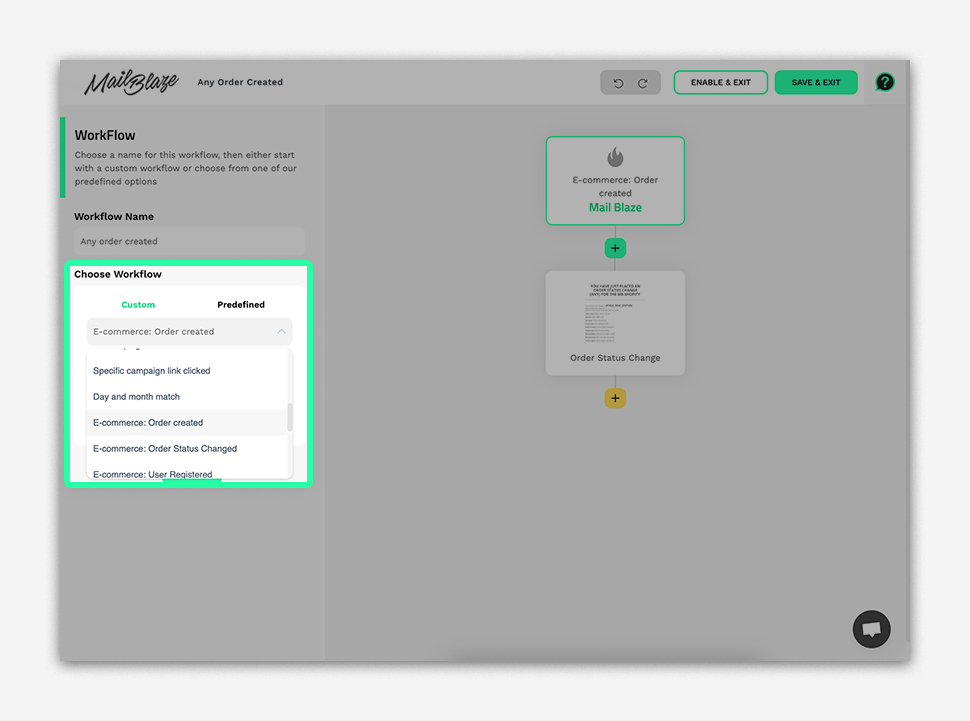
Available WooCommerce Triggers and Conditions
The available triggers and conditions depend on the customer action you want to track. Use the table below as a reference when configuring your automation.
| Category | Trigger | Available conditions | Primary purpose |
|---|---|---|---|
| Order Management | Order Created | Any order created, Total amount, Currency code, Payment method | Post-purchase communication and order lifecycle management |
| Order Management | Order Status Changed | Any status change, Status was, Status now, Status from to, Total amount | Keep customers informed about order progress and status updates |
| Customer Registration | User Registered | No additional conditions; just choose a list | Welcome new customers and support customer onboarding |
| Product Activity | Product Purchased | Any purchase, Total amount, Status, Ordered items | Send post-purchase follow-ups, product recommendations, and related communications |
| Product Activity | Product Viewed | A specific product, Any product, A category or collection | Send targeted product recommendations and follow-ups based on browsing activity |
| Shopping Cart | Cart Created | Any cart created, Total amount, Cart items | Engage customers after they create a shopping cart |
| Shopping Cart | Cart Updated | Any cart updated, Total amount, Cart items | Respond to changes in cart contents or value with relevant communications |
| Shopping Cart | Cart Abandoned | Any cart abandoned, Total amount, Cart items | Remind customers about abandoned carts and encourage them to complete their purchases |
| Promotions | Coupon Used | Any coupon, Coupon code, Discount | Follow up on coupon use and deliver relevant promotional communications |
| Subscription Management | Subscription Created | Any subscription, Total amount, Status, Subscription start date, Next payment date | Welcome subscribers and provide relevant subscription or payment information |
| Subscription Management | Subscription Cancelled | Any cancellation, Total amount, Status, Subscription start date, Next payment date | Confirm cancellations, collect feedback, and support customer retention efforts |
| Customer Engagement | User Opt-In | No additional conditions; just choose a list | Welcome new subscribers and begin subscriber engagement |
Important: User Registered and User Opt-In require you to select a list rather than configure additional conditions. Re-entry is configured separately and is not part of the initial trigger.
Customers must provide the appropriate consent before they can be added as confirmed marketing subscribers. Customers who have not provided the required consent will be added in an unconfirmed state.
1. Order Management Triggers
E-commerce: Order Created
The Order Created trigger starts an automation when a customer places an order and WooCommerce creates the order.
You can use the available conditions to create more relevant customer journeys based on the order amount, currency code or payment method.
Email automation examples
Order confirmation
- Include an order summary with itemised details.
- Confirm the payment and provide a receipt, where applicable.
- Share the estimated delivery timeline.
- Explain how to track the order.
- Include your customer support contact information.
Thank-you email and what's next
- Send a personalised thank-you message.
- Explain the order preparation and shipping process.
- Share product care instructions or setup guides.
- Invite customers to follow your brand on social media.
- Introduce your loyalty programme, if available.
Cross-sell follow-up
- Recommend complementary products.
- Share relevant product bundles or offers.
- Include customer reviews and testimonials.
- Offer a promotion for a future purchase, where appropriate.
E-commerce: Order Status Changed
The Order Status Changed trigger lets you create email workflows based on changes to an order's status in WooCommerce.
Use the available conditions to target specific status changes, such as processing, completed, cancelled or refunded orders, depending on the statuses supported by your integration.
Email automation examples
Order processing
- Confirm that the order is being prepared.
- Share the estimated preparation time.
- Provide updates about stock or fulfilment, where applicable.
- Include contact information for questions.
Order shipped
- Send a shipping confirmation with tracking details.
- Share the estimated delivery timeline.
- Provide carrier information.
- Include delivery preparation tips, where relevant.
Order completed or delivered
- Confirm that the order has been completed.
- Share product usage tips or setup guides.
- Ask customers to review their purchase.
- Recommend relevant products for their next purchase.
Order delayed
- Apologise for the delay.
- Provide an updated delivery estimate, if available.
- Explain how to contact your support team.
- Suggest relevant alternatives, where appropriate.
Order cancelled or refunded
- Confirm the cancellation or refund.
- Explain the expected refund processing timeline, where applicable.
- Outline the next steps.
- Provide your customer support contact details.
Note: Available order statuses and shipping updates depend on your WooCommerce store configuration and the information provided through the integration. For example, a delivered status may require a shipping plugin or another integration.
2. Customer Registration and Engagement Triggers
WooCommerce provides two triggers for customer registration and marketing engagement: User Registered and User Opt-In.
E-commerce: User Registered
The User Registered trigger starts an automation when someone registers an account on your WooCommerce website.
When setting up this trigger, select the list you want to use. No additional conditions are required.
Use this trigger to welcome new customers, introduce your brand and help them get started with their account.
Email automation examples
Welcome email
- Send a welcome message that reflects your brand.
- Share account setup information.
- Explain how to navigate your website.
- Provide customer service and support details.
- Include a first-purchase offer, where appropriate.
Your brand story and values
- Introduce your company's history and mission.
- Explain what makes your products different.
- Share customer testimonials and success stories.
- Include links to your social media channels and community.
- Share behind-the-scenes content.
Product catalogue introduction
- Highlight your best-selling products.
- Recommend relevant products.
- Share product guides and selection tips.
- Showcase customer favourites and popular items.
- Introduce exclusive products or offers.
How-to guides and tips
- Explain how to use your products.
- Share tutorials and demonstrations.
- Provide care and maintenance advice.
- Offer styling or product-pairing suggestions, where relevant.
Special offers
- Introduce promotions for new customers.
- Share bundle deals or free shipping thresholds.
- Explain your loyalty programme.
- Introduce your referral programme.
E-commerce: User Opt-In
The User Opt-In trigger starts an automation when someone opts in to receive email marketing communications.
Select the list you want to use. No additional conditions are required.
Use this trigger to welcome new subscribers, confirm their subscription where needed and explain what they can expect from your emails.
Email automation examples
Subscription confirmation
- Thank the subscriber for signing up.
- Include a double opt-in confirmation step, if required.
- Explain your expected email frequency and subscription preferences.
- Include links to manage preferences or unsubscribe.
Welcome to your community
- Introduce the type of content you send.
- Explain what subscribers can expect and how often.
- Highlight the benefits of subscribing.
- Share links to your social media community.
- Include relevant customer testimonials.
First exclusive offer
- Provide a subscriber-only discount.
- Offer early access to sales.
- Share a free shipping offer or relevant bundle deal.
- Highlight limited-time promotions, where appropriate.
Content preferences
- Allow subscribers to indicate their preferred email frequency, where supported.
- Ask about product interests.
- Provide communication preference options.
- Collect birthday or anniversary details, where appropriate and with consent.
3. Product and Shopping Activity Triggers
These triggers allow you to build automations around product purchases, product views and shopping cart activity.
E-commerce: Product Purchased
The Product Purchased trigger starts an automation when a customer makes a purchase.
Available conditions include Any purchase, Total amount, Status and Ordered items.
Use these conditions to create follow-up emails based on purchase activity and order details.
Email automation examples
- Send product-specific care instructions or setup guides.
- Recommend complementary products.
- Share tips to help customers get more value from their purchase.
- Request a product review after an appropriate period.
- Introduce related products or accessories.
E-commerce: Product Viewed
The Product Viewed trigger starts an automation when a customer views a product.
Available conditions include A specific product, Any product, and A category or collection.
Use these conditions to tailor follow-up emails to the products customers have viewed.
Email automation examples
- Remind customers about products they have viewed.
- Highlight product features and benefits.
- Share customer reviews and ratings.
- Recommend similar or complementary products.
- Answer common questions that may prevent a purchase.
E-commerce: Cart Created
The Cart Created trigger starts an automation when a shopping cart is created.
Available conditions include Any cart created, Total amount and Cart items.
Email automation examples
- Highlight the benefits of the selected products.
- Share product guides or customer reviews.
- Provide information about shipping, returns and payment options.
- Recommend relevant products or accessories.
E-commerce: Cart Updated
The Cart Updated trigger starts an automation when a customer's shopping cart is updated.
Available conditions include Any cart updated, Total amount and Cart items.
Use this trigger to respond to changes in the items or value of a customer's cart.
Email automation examples
- Share relevant product recommendations.
- Highlight complementary products.
- Provide helpful product information.
- Remind customers of available delivery or payment options.
E-commerce: Cart Abandoned
The Cart Abandoned trigger starts an automation when a customer leaves a cart without completing the purchase, based on the abandonment rules supported by the integration.
Available conditions include Any cart abandoned, Total amount and Cart items.
Email automation examples
Gentle reminder
- Remind customers about the items in their cart.
- Include cart contents and product images, where available.
- Add a link back to the checkout.
- Share customer reviews for the selected products.
- Include your customer support contact information.
Reinforce product value
- Highlight key product features and benefits.
- Share customer reviews and ratings.
- Explain your shipping and returns policies.
- Outline available payment options.
- Answer common questions that may prevent customers from purchasing.
Incentive offer
- Provide a discount code, where appropriate.
- Offer free shipping, if available.
- Include a link to return to checkout.
Final reminder
- Follow up if the customer has not completed the purchase.
- Suggest relevant product alternatives.
- Address common concerns.
- Include a final incentive, if suitable for your business.
E-commerce: Coupon Used
The Coupon Used trigger starts an automation when a customer uses a coupon.
Available conditions include Any coupon, Coupon code and Discount.
Email automation examples
- Thank customers for using a promotional offer.
- Recommend products related to their purchase.
- Share information about other available offers, where appropriate.
- Introduce your loyalty programme.
- Encourage repeat purchases with relevant product recommendations.
4. Subscription Management Triggers
E-commerce: Subscription Created
The Subscription Created trigger starts an automation when a subscription is created in WooCommerce.
Available conditions include Any subscription, Total amount, Status, Subscription start date and Next payment date.
Email automation examples
- Welcome new subscribers.
- Confirm their subscription details.
- Explain recurring billing and renewal arrangements.
- Share instructions for managing their subscription.
- Provide customer support contact information.
E-commerce: Subscription Cancelled
The Subscription Cancelled trigger starts an automation when a customer's subscription is cancelled.
Available conditions include Any cancellation, Total amount, Status, Subscription start date and Next payment date.
Email automation examples
- Confirm the cancellation.
- Explain any relevant next steps.
- Invite customers to share feedback about their experience.
- Offer help if they cancelled because of a problem.
- Share a suitable option for returning in the future.
5. Automation Re-entry Settings
Re-entry controls how often a contact can enter the same automation. It is a separate condition, not a setting on the initial trigger.
Choose the re-entry option that matches the purpose of your automation.
No re-entry
A contact can enter the automation once, ever. Even if the trigger happens again, they cannot enter the same automation another time.
When to use it: Welcome or sign-up automations that should run only once per contact.
Example: Someone registers for an account and receives a welcome series. Registering again will not allow them to enter that same automation again.
Allow re-entry
A contact can enter the automation every time the trigger happens.
When to use it: Order-related automations that should run for each qualifying order or purchase.
Example: A customer purchases a product and enters the automation. When they make another qualifying purchase, they can enter it again.
Re-enter after
A contact can enter the automation again once the specified period has passed since their previous entry.
When to use it: Automations that should run more than once but need a waiting period between entries.
Example: You set the re-entry period to seven days for a Product Viewed automation. A customer views a product on Monday and enters the automation. If they trigger it again on Friday, they cannot re-enter yet. Once the seven-day period has passed, a new qualifying trigger can allow them to enter again.
Best Practices for WooCommerce Automations
Follow these recommendations to get the most out of your e-commerce automations:
- Check your triggers: Make sure each automation starts when the intended customer action occurs.
- Use relevant conditions: Personalise emails based on order details, product activity, cart information, coupon usage or subscription events.
- Choose the right re-entry condition: Decide whether contacts should enter once, every time the trigger occurs, or only after a specified period.
- Respect marketing consent: Send promotional emails only to subscribers with the appropriate consent. Keep marketing emails distinct from necessary transactional communications.
- Avoid duplicate messages: Review your workflows to prevent customers from receiving overlapping emails.
- Monitor performance: Track clicks, conversions, bounces, unsubscribes and revenue where these metrics are available.
- Test before activating: Check your triggers, conditions, email content, links and timing to ensure everything works as intended.
Need Help?
If you have any questions about setting up your WooCommerce e-commerce automations, contact our support team via live chat or email us at [email protected].
One note before publishing: The table now serves as the quick reference, while the sections below explain how to use each trigger. This avoids making readers search through the article to find the available conditions.
Still haven't found what you are looking for?
Book a demo with us and see Mail Blaze in action, or reach out to our support team for expert assistance. We're here to help you every step of the way!
Still haven't found what you are looking for?
Still haven't found what you are looking for?
Book a demo with us and see Mail Blaze in action, or reach out to our support team for expert assistance. We're here to help you every step of the way!
Book a demo with us and see Mail Blaze in action, or reach out to our support team for expert assistance. We're here to help you every step of the way!